 Daylist
Your to‑do list, on your Lock Screen. Before you even unlock.
Daylist turns your daily tasks into your iPhone wallpaper. Every time you pick up your phone, your day is right there — no widgets, no notifications that disappear, no opening an app to remember what matters.
Free to try · iOS 17+ · 100% private, on‑device
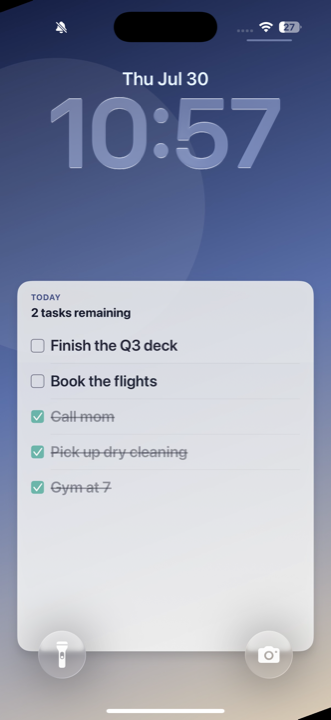
You check your phone ~100 times a day.
Make every single pickup a reminder of what today is actually about.
A task wallpaper that actually looks good
Your list on a clean card over a calm gradient — legible at a glance, designed to live on your Lock Screen all day.
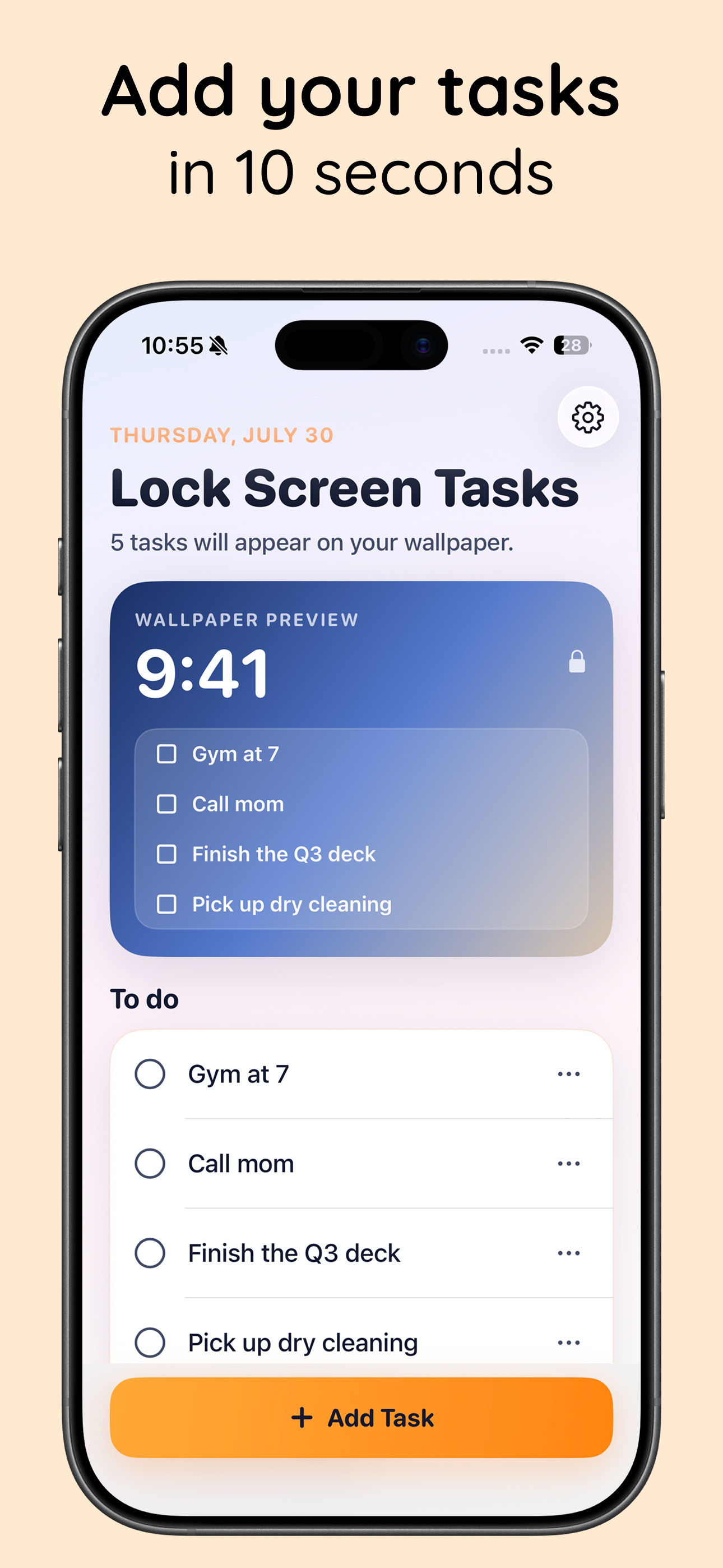
Add tasks in 10 seconds
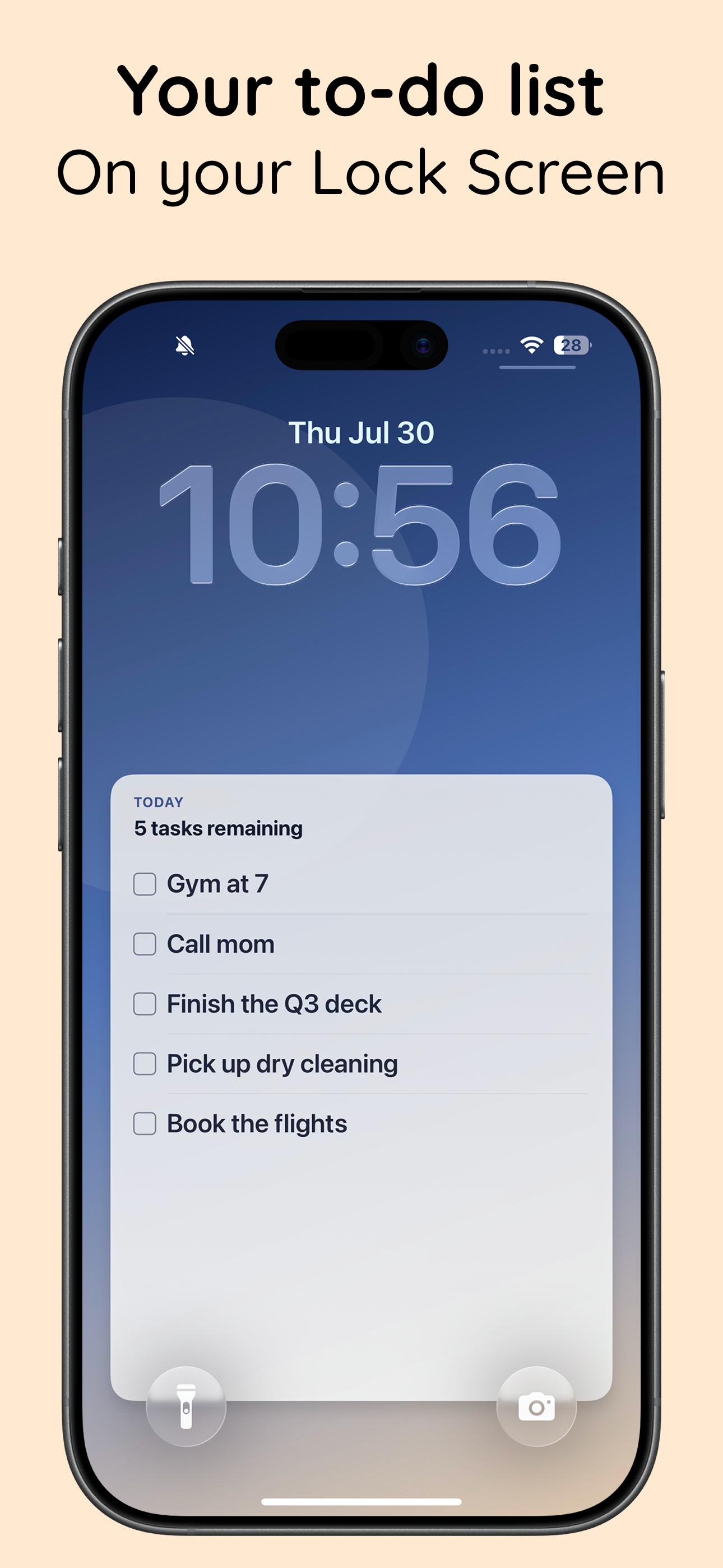
Your to‑do list, on your Lock Screen
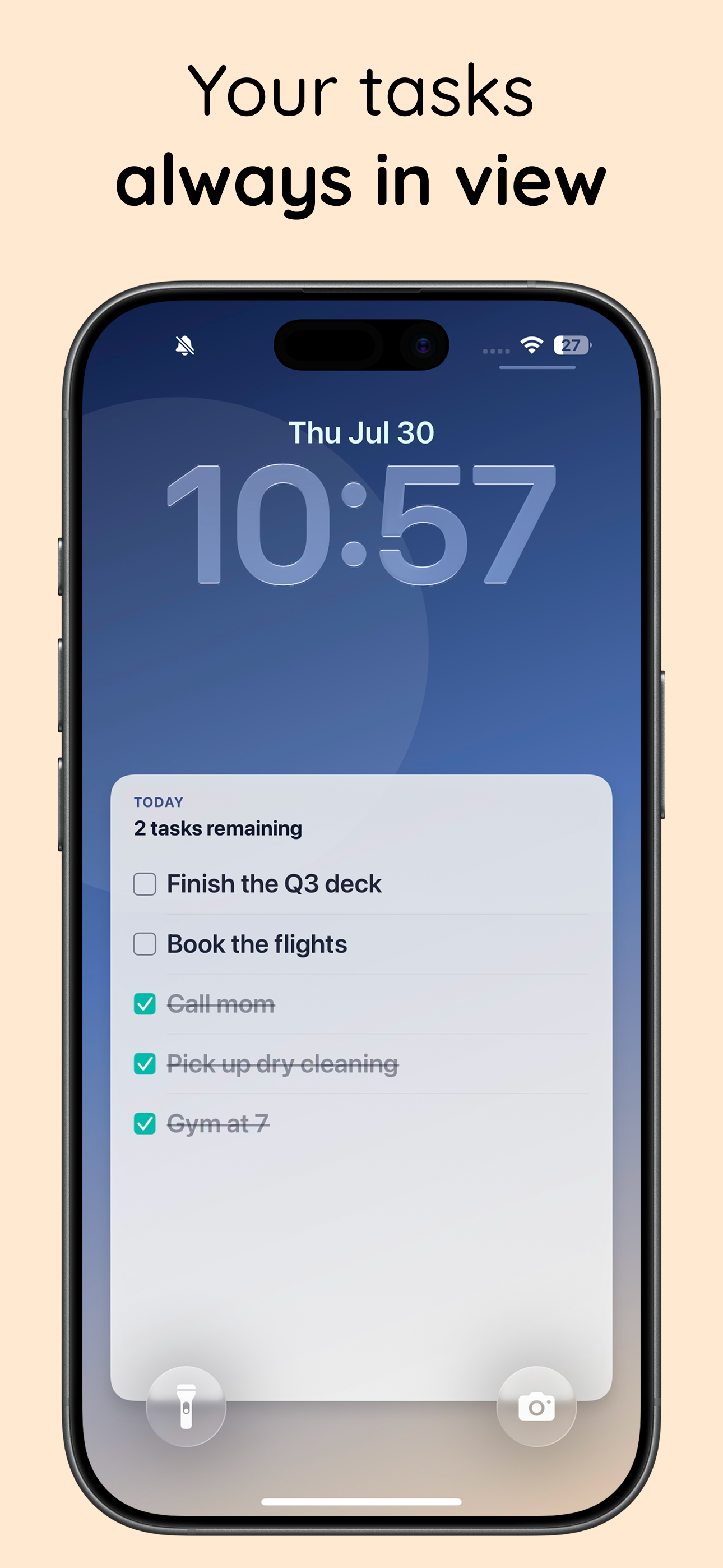
Your tasks always in view
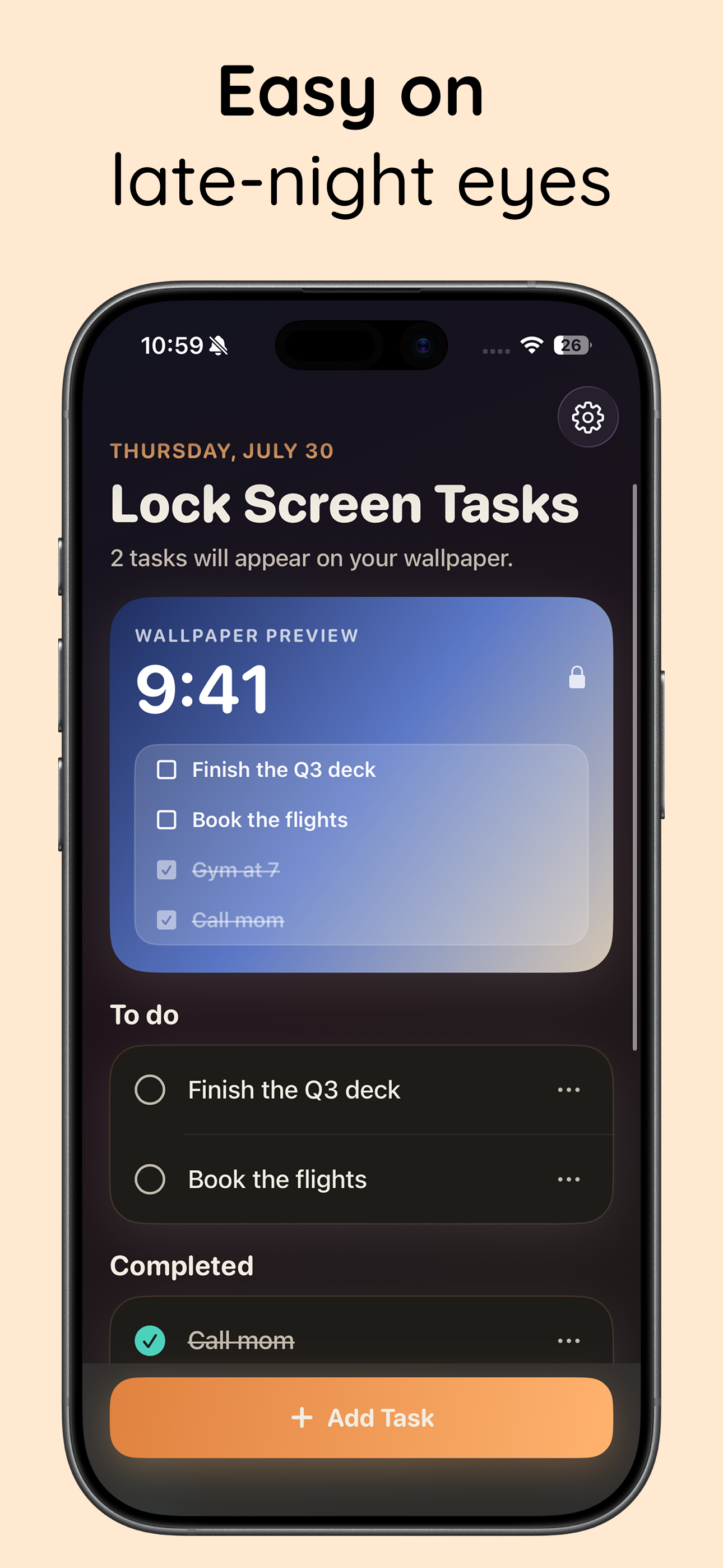
Easy on late‑night eyes
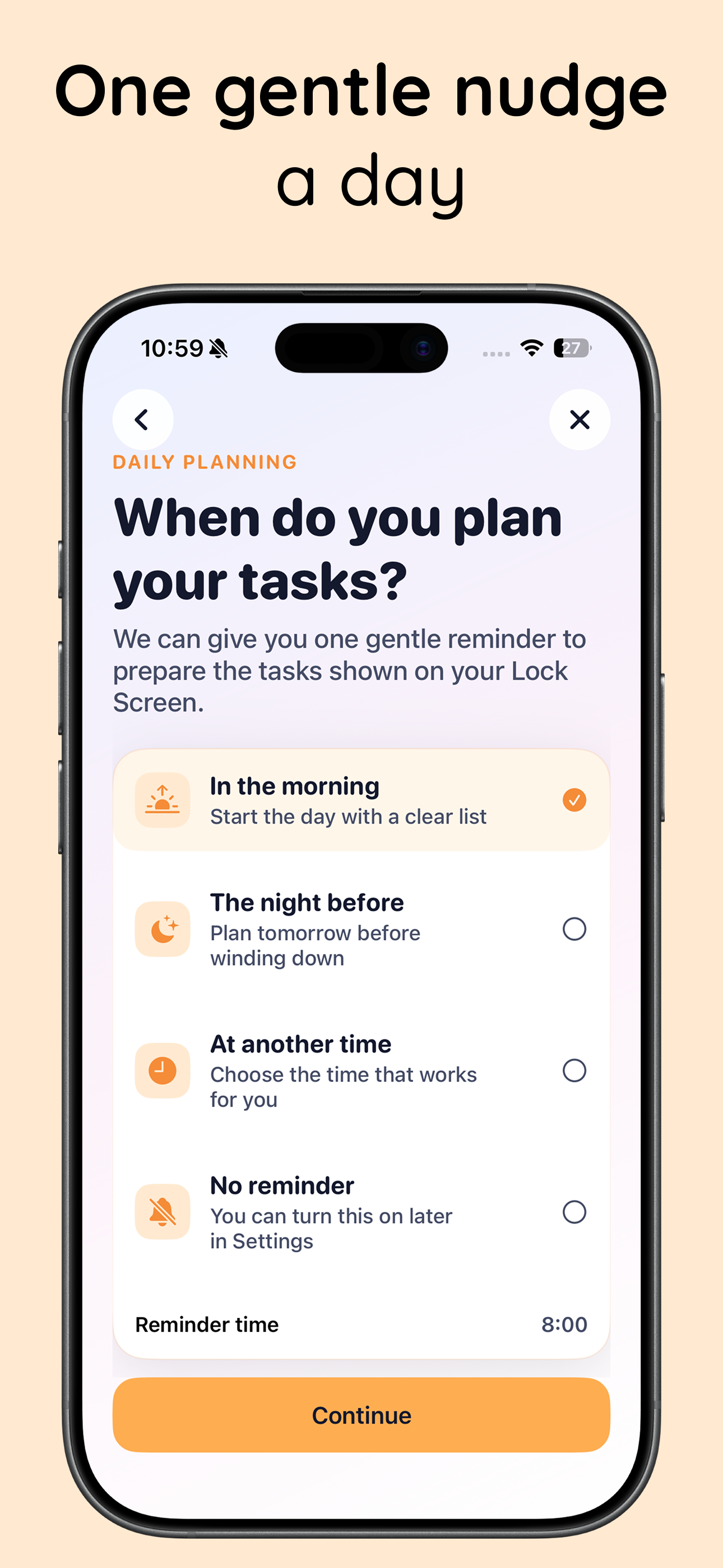
One gentle nudge a day
Set it up once. It updates itself forever.
Daylist uses Apple Shortcuts to rebuild your Lock Screen wallpaper automatically — in the background, without ever opening the Shortcuts app again.
Add your tasks
Write down what today is about. Check things off as you go — completed tasks get a satisfying strikethrough.
Install one Shortcut
Tap once to add the shared “Update Daylist Wallpaper” Shortcut. Daylist walks you through it with videos.
Turn on one automation
An app‑close automation triggers the Shortcut, so your wallpaper is rebuilt every time you leave the app.
Just live your day
Your Lock Screen always shows what’s left. When everything’s done, you get a clean “All clear” — the best wallpaper of all.
Everything about tasks on your Lock Screen
Honest, step‑by‑step answers — including the built‑in iPhone options — and how Daylist makes each one effortless.
How to Put a To‑Do List on Your iPhone Lock Screen
Every method compared — widgets, notifications, Live Activities, and the wallpaper approach that actually sticks.
Read the guide → WallpaperTo‑Do List Wallpaper: Turn Your Tasks Into Your iPhone Background
Manual image exports vs. an automatic task wallpaper that rebuilds itself every time your list changes.
Read the guide → RemindersHow to Keep Reminders on Your Lock Screen (So They Never Disappear)
Why reminder notifications vanish, the settings that help, and how to make tasks permanent instead.
Read the guide → WidgetsLock Screen To‑Do List Without Widgets
iPhone widgets give your tasks a strip the size of a fingernail. Here’s how to use the whole screen instead.
Read the guide → ADHD“Out of Sight, Out of Mind”: A Visible Task List for ADHD Brains
Why swiped notifications equal forgotten tasks, and how a wallpaper task list creates ~100 gentle re‑reminders a day.
Read the guide → ShortcutsAutomatically Update Your iPhone Wallpaper With Your Tasks
The Apple Shortcuts automation explained — build it yourself, or let Daylist set it up in two minutes.
Read the guide → GlanceableHow to See Your Tasks Without Unlocking Your iPhone
StandBy, widgets, Live Activities, and wallpapers compared — what’s truly glanceable and what isn’t.
Read the guide → Daily planningA Simple Daily Task List That Keeps You On Track
The 3‑task evening planning ritual, and how putting the list on your Lock Screen makes you actually follow it.
Read the guide →Questions, answered
How do I put a to‑do list on my iPhone Lock Screen?
The most reliable way is to make your list part of the wallpaper itself. Daylist renders your tasks as a designed wallpaper and an Apple Shortcut sets it for you automatically — visible on every pickup, no unlocking required. Learn more →
Does the wallpaper update automatically when I add or complete tasks?
Yes. A one‑time setup adds one Shortcut and one personal automation that runs every time you close Daylist. Change your list, and the wallpaper rebuilds in the background — you never set it manually. Learn more →
Is a task wallpaper better than a Lock Screen widget?
Widgets are confined to a tiny strip under the clock and fit one or two truncated lines. A wallpaper uses the whole screen: Daylist shows up to 8 full tasks with checkboxes, strikethroughs, and a remaining count. Learn more →
Why do my reminders disappear from the Lock Screen?
Notification banners vanish when swiped or after you unlock. Tasks baked into the wallpaper can’t disappear — they stay until you check them off in the app. Learn more →
Is Daylist helpful for ADHD or chronic task‑forgetting?
Yes — it’s built around beating “out of sight, out of mind.” Your list reappears on every one of the ~100 daily phone pickups, so tasks keep re‑entering your attention without a single guilt‑inducing notification. Learn more →
Can I see my tasks without unlocking my phone at all?
That’s the whole point: the wallpaper is the first thing you see when you raise or tap your iPhone — before Face ID, before the Home Screen. Learn more →
Does Daylist need an account? Where do my tasks go?
No account, no cloud, no tracking. Tasks and the generated wallpaper are created and stored entirely on your iPhone. Learn more →
Which iPhones are supported?
Any iPhone on iOS 17 or later. Wallpaper setting uses Apple Shortcuts’ native “Set Wallpaper” action, and Daylist guides you through the one‑time setup step by step. Learn more →
Stop forgetting. Start seeing.
Put today’s list where you already look 100 times a day — your Lock Screen.
Download on theApp Store